
Working with flashcards in Google Sheets and want to import them directly into byHeart? With a public Google Sheets link, you can instantly turn your online spreadsheet into a ready-to-study flashcard collection — no downloads or manual entry required.
This guide shows you how to import flashcards from Google Sheets and how to prepare your spreadsheet for sharing.
Tutorial
Step 1: Create a New Collection
- On the home screen, tap the "+" button in the bottom menu to open the Add New Collection screen.
- Choose a name for your new collection.
Step 2: Select Import Mode
- Choose Import as your creation method.
- In the Import Method dropdown, select Google Sheets.
Step 3: Insert Public Google Sheets Link
- Paste the public link to your Google Sheets document into the provided field.
- Make sure the link is published to the web — see the instructions below if you need help with this step.
Step 4: Map Your Spreadsheet Columns
- Select which column should appear on the front of each flashcard and which should appear on the back.
- If your spreadsheet includes a tags column (e.g. categories or topics), you can assign that as well.
- This step ensures your imported cards display exactly as you expect.
Step 5: Confirm Import
- Tap Confirm to complete the import process.
- Your new collection will appear on the home screen — ready to study right away.
How to Publish Your Google Sheets as a Public Link
Before you can import from Google Sheets, you need to make your spreadsheet publicly accessible. Follow these steps on desktop:
Step 1: Open the Share Menu
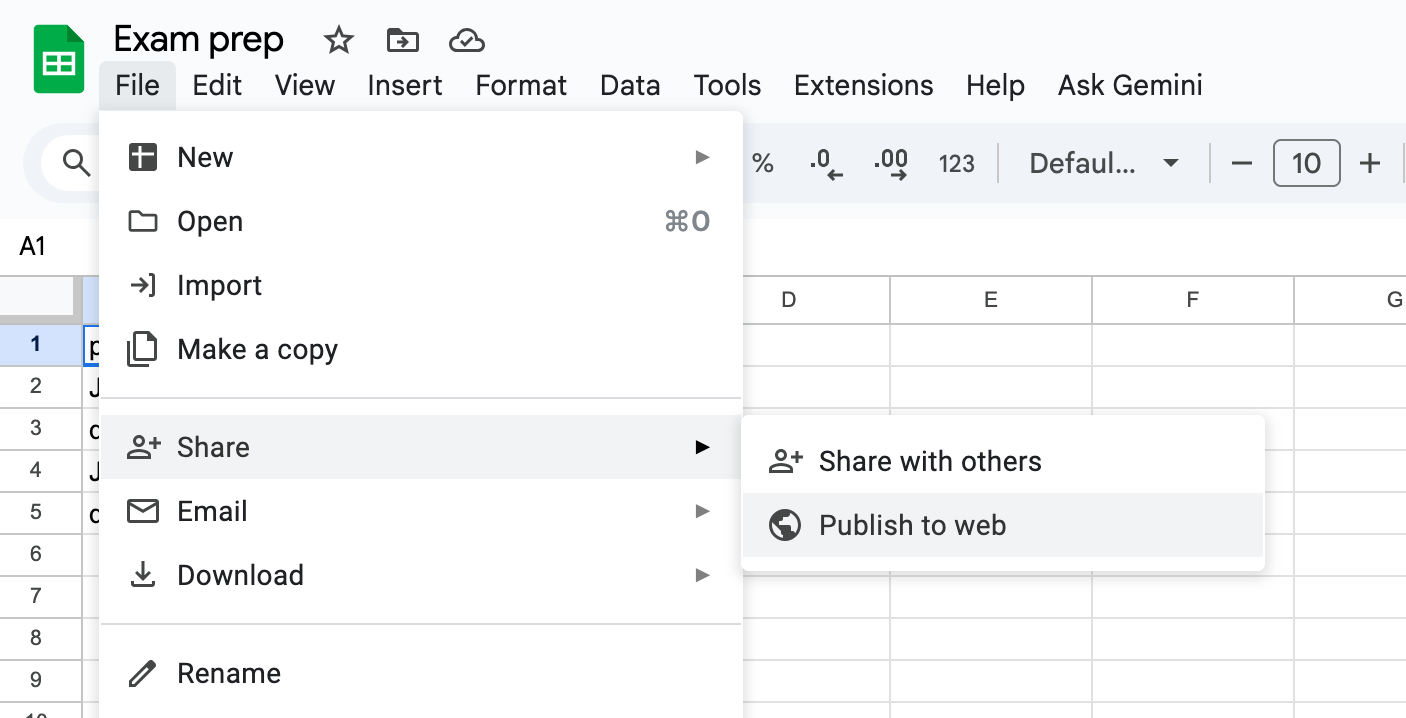
- In Google Sheets, click File in the top menu bar.
- Select Share, then choose Publish to web.
Step 2: Select the Sheet and Format
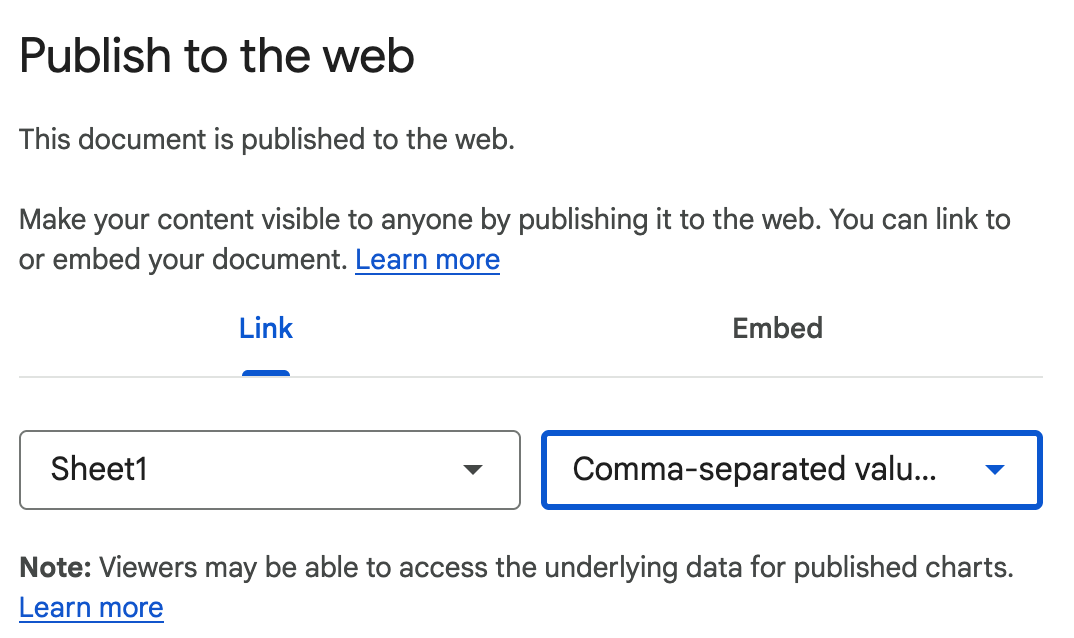
- In the dialog that appears, use the first dropdown to select the specific sheet you want to share.
- In the second dropdown, select Comma-separated values (.csv) as the format.
Step 3: Copy the Generated Link
- Click Publish to generate your public link.
- Copy the generated URL — this is the link you'll paste into the byHeart app when importing.
Why Import from Google Sheets?
- Cloud-based workflow — no need to download files or transfer data manually.
- Real-time updates — edit your spreadsheet and re-import anytime to refresh your flashcards.
- Collaboration-friendly — work with others on the same sheet before importing into byHeart.
- Works anywhere — access your Google Sheets from any device with a browser.
Next step:
Open your Google Sheets document, publish it to the web, and import your flashcards into byHeart today — the easiest way to turn online spreadsheets into smart study tools.